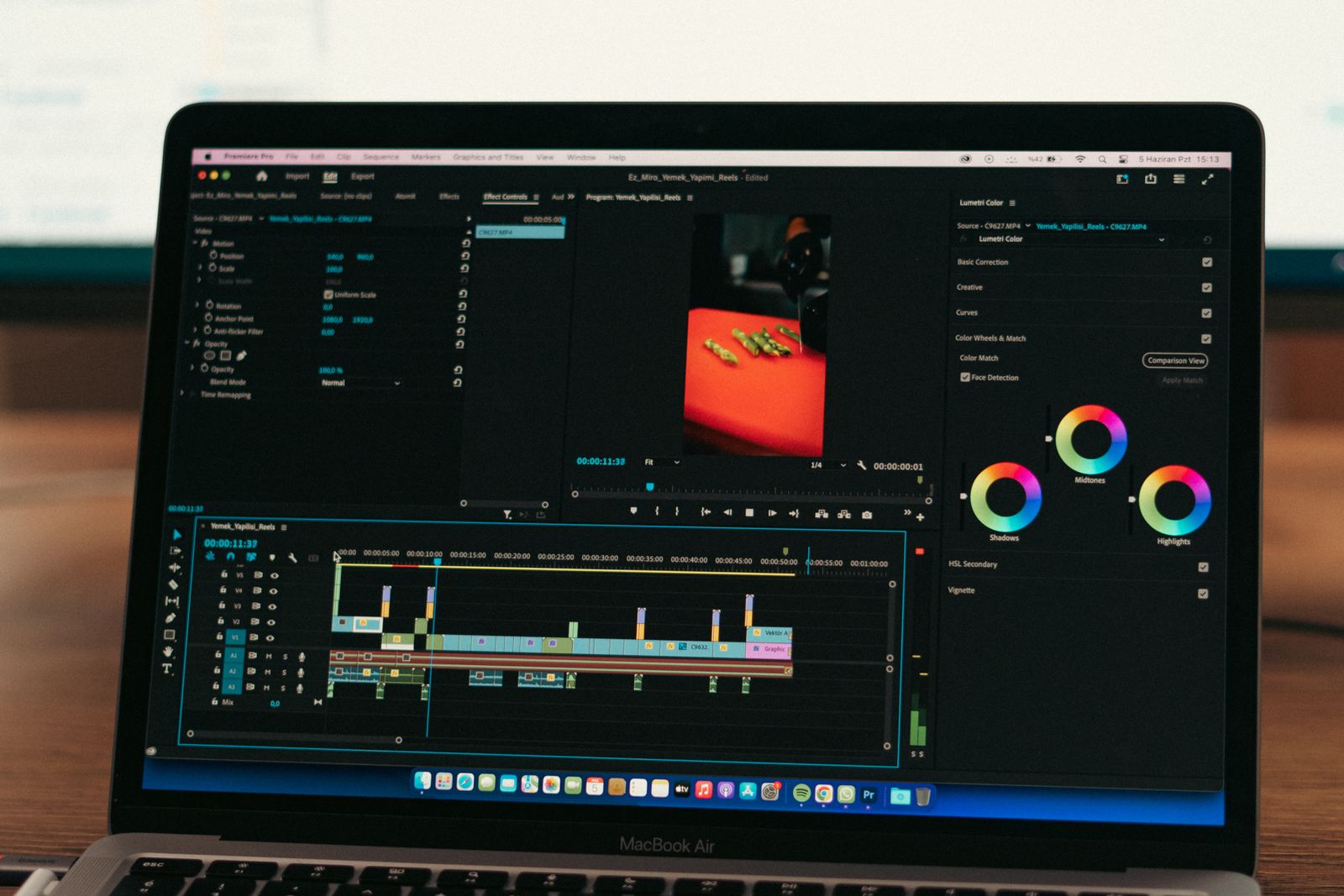
If you've posted video content anywhere in the last two years, you already know the rule: most people watch with the sound off, and a video without captions loses a huge share of its audience in the first three seconds. Manually captioning video used to mean either paying for a transcription service or spending an hour syncing text to a timeline by hand. AI auto-captioning tools collapsed that hour into about ninety seconds — and the more advanced ones now handle full dubbing into other languages, not just captions in the original one.
This guide separates the two jobs that get lumped under "auto-subtitling," because they're not the same tool category. Captioning tools transcribe and style text on top of your existing audio. Dubbing tools go further — they generate a new voice track in a different language entirely, syncing the translated audio to the video. Some tools do both; most specialize in one.
In this article
- Quick Comparison
- For captions: Submagic, Captions, Veed
- For dubbing into other languages: Rask AI
- For turning long videos into short, captioned clips: Opus Clip
- What actually matters when choosing
- Frequently Asked Questions
- Do auto-captioning tools work in languages other than English?
- Is AI dubbing good enough to replace human voice actors?
- Will auto-generated captions hurt my accessibility compliance?
- Can I use these tools for live streaming, not just recorded video?
- How much does auto-dubbing cost compared to hiring a translator and voice actor?
- Final Verdict
Quick Comparison
| Tool | Best for | Standout feature | Free tier |
|---|---|---|---|
| Submagic | Social captions with style | Auto-generated animated caption styles | Limited free videos |
| Captions | Mobile-first creators | AI-generated B-roll and caption templates | Limited free videos |
| Veed | All-in-one editing + captions | Full editor with subtitles built in | Limited free minutes |
| Rask AI | Full video dubbing | Voice cloning across multiple languages | Limited free minutes |
| Opus Clip | Long-form to short clips + captions | Auto-finds the clip-worthy moments AND captions them | Limited free clips |
For captions: Submagic, Captions, Veed
Submagic has built its reputation specifically around caption style — rather than just plain white text on a black bar, it auto-generates animated, punchy caption designs that mimic what high-performing creators are already using, word-by-word highlight effects included. If your captions are meant to actively hold attention rather than just serve accessibility, this is the more purpose-built option.
Captions is built mobile-first, which matters if your actual workflow is filming and editing on a phone rather than a desktop. Beyond captioning, it's added AI tools for generating B-roll and even an AI "eye contact" correction feature — squarely aimed at solo creators who are both in front of and behind the camera.
- Both auto-transcribe with generally high accuracy on clear audio, and both let you manually correct any misheard words before publishing
- Neither replaces a human proofread entirely — names, jargon, and heavy accents still produce occasional errors worth a quick check
Auto-captioning accuracy on clear, single-speaker audio is genuinely excellent now — the honest gap is overlapping speakers, heavy accents, and background noise, where even the best tools still need a manual pass.
Veed takes a different angle — it's a full video editor with captioning built in as one feature among many, rather than a captioning-first tool. If you're already planning to trim, add music, and adjust pacing in the same session, doing captions in the same tool avoids exporting and re-importing between apps.
For dubbing into other languages: Rask AI
Rask AI is built specifically for the dubbing job — it transcribes your original audio, translates it, and generates a new voice track (optionally cloning the original speaker's voice) synced to the video's timing. This is a genuinely different capability from anything a captioning tool offers, and it's the right tool when the goal is reaching an audience that doesn't read the original language, not just accommodating muted playback.
For turning long videos into short, captioned clips: Opus Clip
Opus Clip solves an adjacent but distinct problem: instead of captioning a video you've already decided to publish, it takes a long-form video (a podcast, webinar, or stream) and automatically identifies the moments most likely to work as short clips, then cuts and captions them. If your actual workflow starts with hours of raw footage rather than a finished short video, this saves the manual scrubbing-and-clipping step entirely, not just the captioning step.
- Opus Clip's clip-selection is genuinely useful for finding a "hook" moment you might have scrolled past manually
- It's not a replacement for editorial judgment — review its picks rather than auto-publishing everything it selects
What actually matters when choosing
- Where you post matters more than raw accuracy. If your primary platform is TikTok or Reels, style-forward tools like Submagic or Captions earn their keep. If it's YouTube or LinkedIn, Veed's fuller editor may be more useful than caption styling alone.
- Always review before publishing. Every tool here occasionally mishears a word, especially technical terms, brand names, or non-English words mixed into English audio — a 30-second read-through catches nearly all of it.
- Dubbing needs a bigger quality-check budget than captioning. A caption error is a quick fix; a dubbing error means re-listening to a full translated track, so budget more review time per minute of dubbed content.
Frequently Asked Questions
Do auto-captioning tools work in languages other than English?
Most support multiple languages for transcription, though accuracy varies more outside English, especially for less widely-spoken languages. If your content is primarily in a non-English language, test a short clip first rather than assuming English-level accuracy across the board.
Is AI dubbing good enough to replace human voice actors?
For a lot of practical use cases — internal training, product explainers, localized marketing content — yes, it's genuinely usable. For anything where performance and emotional nuance matter a lot (film, high-end brand campaigns), human voice actors still generally outperform current AI dubbing.
Will auto-generated captions hurt my accessibility compliance?
They're a strong starting point but shouldn't be treated as a final compliance solution on their own — always review and correct auto-captions before relying on them for accessibility standards like WCAG, since even small transcription errors can materially change meaning for viewers relying on captions.
Can I use these tools for live streaming, not just recorded video?
A few, like Veed, offer some live-adjacent workflows, but most of the tools in this guide — including Submagic, Captions, and Opus Clip — are built for post-production on already-recorded footage, not real-time captioning during a live stream.
How much does auto-dubbing cost compared to hiring a translator and voice actor?
Meaningfully less for most use cases — typically a fraction of what a professional human translation-plus-voiceover would cost per minute, which is exactly why it's become viable for creators and smaller teams who couldn't previously afford localization at all.
Final Verdict
If you just need clean, attention-holding captions for social content, start with Submagic or Captions depending on whether you edit on desktop or mobile. If captions are one part of a bigger edit, Veed's all-in-one editor saves you an app switch. If you're localizing content for a non-English audience, Rask AI is the tool built for that specific job — just sample-test the lip-sync first. And if your real starting point is hours of raw long-form footage rather than a finished video, Opus Clip handles the clipping and captioning together. Browse more in Video tools.