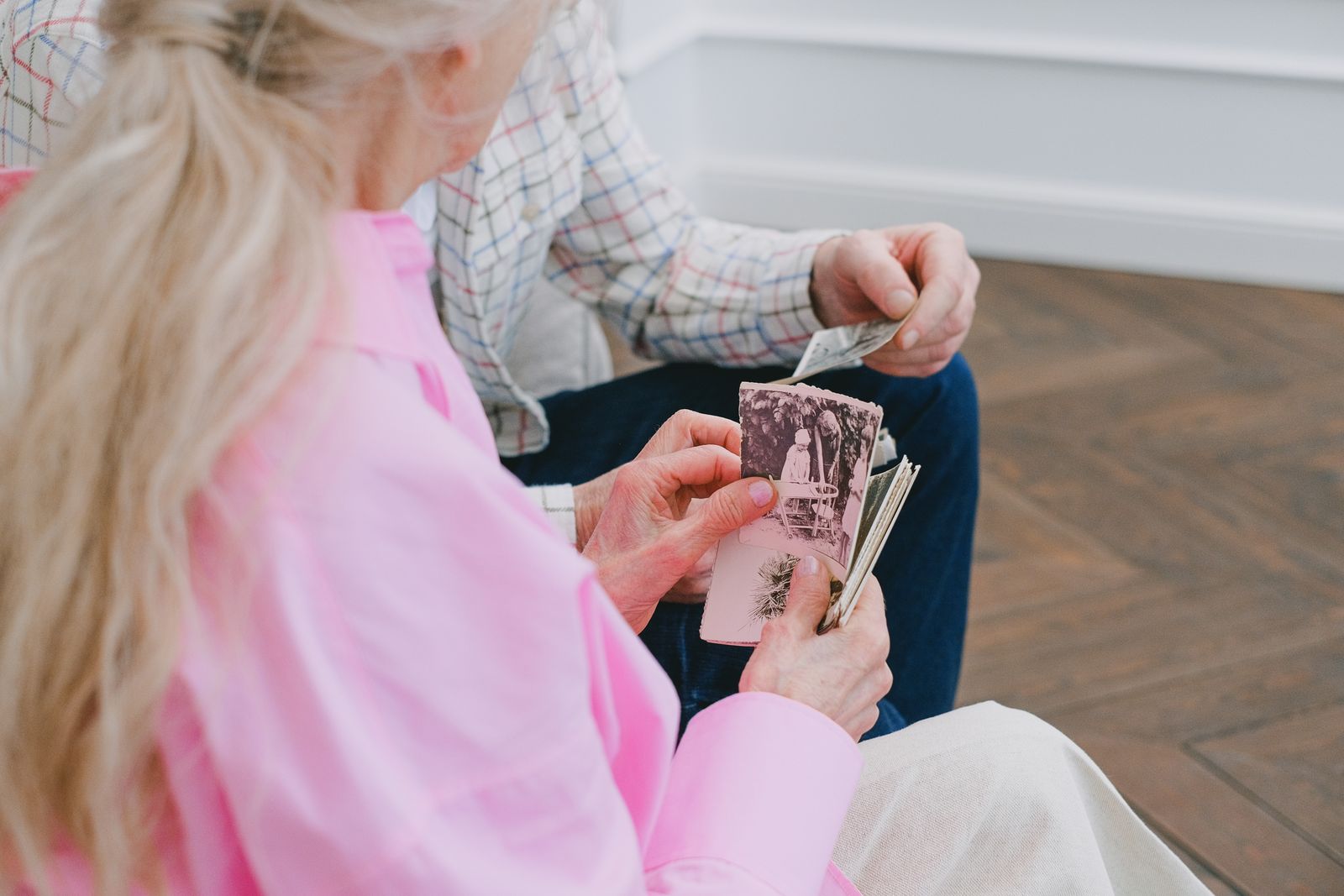
Somewhere in most families there's a shoebox, a photo album with peeling pages, or a folder of early-2000s digital camera shots — pictures that matter more than almost anything else people own, and that time has not been kind to. Creases, faded color, water damage, or just a resolution too low for the phone screen it's now being viewed on.
What used to require a professional photo restorer and real money can now be done reasonably well by software in minutes, though "reasonably well" covers a wide range depending on the damage and the tool. This isn't a category where one tool wins every case — a scratched 1960s portrait and a blurry 2008 phone photo call for different strengths, so it's worth knowing which tool handles which problem before you commit to one.
In this article
- Quick Comparison
- Topaz Photo AI — best for recovering real detail
- Remini — best for old family portraits with damaged faces
- Luminar Neo — best if you also want general photo editing
- Let's Enhance — best for restoring a whole batch at once
- A realistic expectation-setting note
- Frequently Asked Questions
- Which one is best for a single old family photo, not a professional project?
- Do I need to upload my photos to the cloud, or can I keep them private?
- Can these tools fix torn or physically damaged photos, not just blurry ones?
- What's the difference between "upscaling" and "restoring"?
- Should I keep the original alongside the restored version?
- Is it worth paying for one of these versus just using a free phone app filter?
- How do I decide between fixing a photo myself and hiring a professional restorer?
- Final Verdict
Quick Comparison
| Tool | Strongest at | Best for | Pricing model |
|---|---|---|---|
| Topaz Photo AI | Sharpening, denoising, upscaling resolution | Recovering detail in blurry or low-res photos | One-time purchase, desktop app |
| Remini | Face enhancement and restoration on old portraits | Personal/family photo restoration on mobile | Free trial + subscription |
| Luminar Neo | Full photo editing suite with AI restoration tools built in | Photographers who want restoration plus general editing | One-time purchase or subscription |
| Let's Enhance | Batch upscaling for many images at once | Restoring a large batch of photos in one pass | Credit-based plans |
Topaz Photo AI — best for recovering real detail
Topaz Photo AI focuses specifically on sharpening, denoising, and upscaling — pulling out detail that's technically still there in a blurry or grainy image but hard to see at native resolution. It's the strongest option here when the core problem is "this photo is too soft or too small," rather than physical damage like tears or discoloration.
- Runs as a desktop app rather than a web upload, which matters for very large files or sensitive family photos you'd rather not upload anywhere
- One-time purchase rather than an ongoing subscription
- Less focused on colorization or damage repair specifically — its strength is resolution and clarity
Remini — best for old family portraits with damaged faces
Remini built its reputation specifically on faces — reconstructing detail in a blurry, aged, or low-resolution portrait in a way that looks convincingly like the person, not just a generically smoothed-over face. For the classic "restore my grandparents' wedding photo" use case, this face-specific strength is exactly what most people are actually looking for, and it runs easily from a phone rather than needing a desktop setup.
Luminar Neo — best if you also want general photo editing
Luminar Neo isn't a restoration-only tool — it's a full AI-assisted photo editor that happens to include strong restoration and enhancement features alongside its broader editing toolkit (sky replacement, relighting, background removal, and more). Photographers who want one tool for both restoring old family photos and editing new ones get more value here than from a single-purpose restoration app.
Restoring a photo and editing one are different skills that happen to live in the same software category.
Let's Enhance — best for restoring a whole batch at once
Restoring photos one at a time is fine for a handful of prints, but a box of 200 old photos is a different problem. Let's Enhance is built around batch processing — upload a large set of images and apply the same upscaling and enhancement across all of them, which is a meaningfully faster path than running each photo through a single-image tool individually.
A realistic expectation-setting note
- Severe physical damage (large tears, missing sections, heavy water damage) still often needs manual retouching on top of AI tools, not instead of them — think of AI restoration as the first 80% of the work, not the whole job for badly damaged originals.
- Colorizing black-and-white photos is a related but distinct feature that not all four tools handle equally well — Remini and Luminar Neo both offer some colorization, but results can look more "AI guess" than historically accurate for anything beyond obvious colors like skin tone and sky.
- Very low-resolution source images (a tiny thumbnail, a heavily compressed old digital photo) have a real ceiling — these tools recover detail that's statistically likely to have existed, not detail that's literally recoverable from nothing, so expectations should scale down with the source quality.
Frequently Asked Questions
Which one is best for a single old family photo, not a professional project?
Remini is the most approachable starting point for a single old portrait, especially anything focused on restoring a face — it's mobile-friendly and doesn't require photo-editing experience to get a usable result.
Do I need to upload my photos to the cloud, or can I keep them private?
Topaz Photo AI and Luminar Neo both run as desktop applications, so the photo processing happens locally rather than being uploaded anywhere — a meaningful difference if you're restoring sensitive or deeply personal family images.
Can these tools fix torn or physically damaged photos, not just blurry ones?
Partially — AI restoration handles blur, noise, low resolution, and fading well, but large tears or missing sections of a photo generally still need manual retouching in an editor afterward for a fully convincing result.
What's the difference between "upscaling" and "restoring"?
Upscaling increases resolution and sharpens detail in an image that's otherwise intact but small or soft. Restoring implies fixing actual damage or degradation — fading, scratches, water damage. Topaz and Let's Enhance lean more toward upscaling; Remini and Luminar Neo lean more toward restoration, though there's real overlap in what all four can do.
Should I keep the original alongside the restored version?
Yes — always keep the original file untouched and save the restored result as a separate copy. Restoration is somewhat subjective (skin tone, exact sharpness level), and having the original means you or someone else can redo the pass differently later if the first result doesn't feel quite right.
Is it worth paying for one of these versus just using a free phone app filter?
Generally yes for anything that matters — free filters typically apply a generic sharpening effect across the whole image, while these tools use models specifically trained to recover realistic detail (faces especially), producing a noticeably more convincing result on photos worth preserving.
How do I decide between fixing a photo myself and hiring a professional restorer?
For fading, blur, low resolution, and moderate discoloration, any of these four tools will get you most of the way on your own. For a treasured photo with severe physical damage — large tears, missing sections, or heavy mold or water staining — a professional restorer who can combine AI tools with manual retouching is still the safer bet, especially if there's only one surviving copy.
Final Verdict
For a single meaningful family portrait, start with Remini — it's built for exactly that. If the problem is more about blur or low resolution than physical damage, Topaz Photo AI recovers more real detail. Photographers who want restoration alongside general editing should look at Luminar Neo, and anyone restoring a large box of old photos at once should start with Let's Enhance's batch processing. More options live in Design & Image tools.